 MX Player Pro
Three features make MX Player Pro especially practical on a phone: a kids lock, picture-in-picture, and background playback. Here is how to use each one.
Kids lock
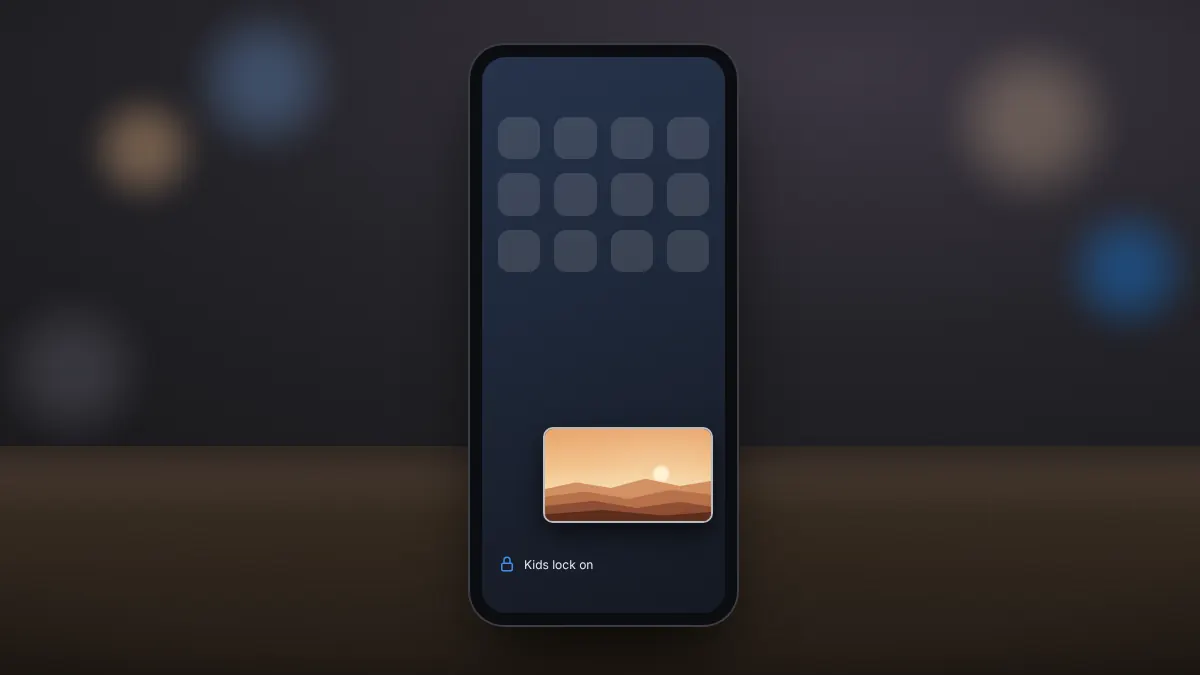
The kids lock stops children from leaving the video, changing settings or opening other files. Start the video, open the lock option from the controls, and choose kids lock. To unlock, follow the on-screen instruction, which is designed to be easy for adults and awkward for small fingers.
Picture-in-picture
Picture-in-picture shrinks the video into a small window that stays on top of other apps. Start the video and press the home button, or choose the picture-in-picture option in the menu. Drag the window to move it, and tap it to show controls.
If it does not work, check Android settings under Apps, then MX Player Pro, and make sure picture-in-picture permission is allowed.
Floating window
The floating window works like picture-in-picture but can be resized freely, which is useful on tablets while browsing or messaging.
Background play
Background play keeps the audio running after you leave the app or turn the screen off, ideal for concerts, podcasts saved as video, or lectures. Turn it on in the player settings, then lock the screen as normal. A notification lets you pause or stop playback.
Summary
Use the kids lock for children, picture-in-picture or the floating window for multitasking, and background play when you only need the sound.