 MX Player Pro
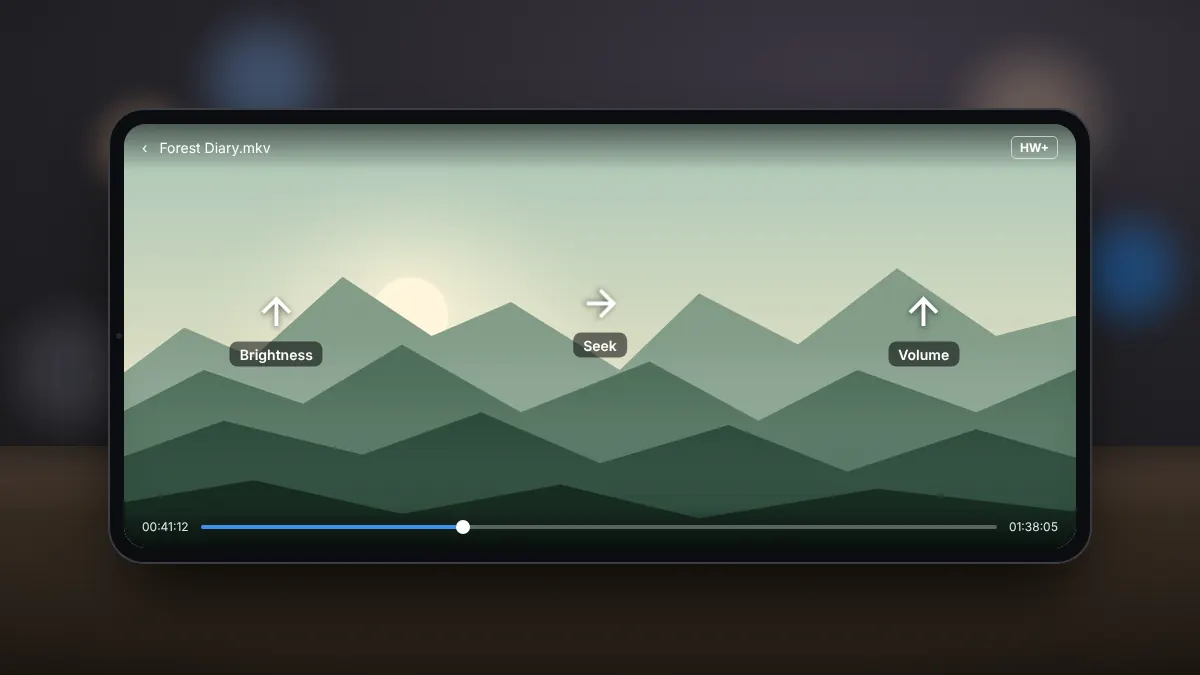
Gestures are what make MX Player comfortable on a phone. Most controls are a swipe away, so you rarely need to open a menu while watching.
The main gestures
| Gesture | What it does |
|---|---|
| Swipe up or down on the right side | Changes volume |
| Swipe up or down on the left side | Changes brightness |
| Swipe left or right | Seeks backwards or forwards |
| Pinch with two fingers | Zooms and fills the screen |
| Double-tap the sides | Skips back or forward a few seconds |
| Tap once | Shows or hides the controls |
Zoom and aspect ratio
Pinch to zoom is useful for removing black bars on wide films. If you prefer fixed options, the aspect ratio button cycles through fit, stretch, crop and original size.
Speed control
Playback speed can be changed from the controls, which is handy for lectures and tutorials. Higher speeds keep the voice pitch natural.
Locking the screen
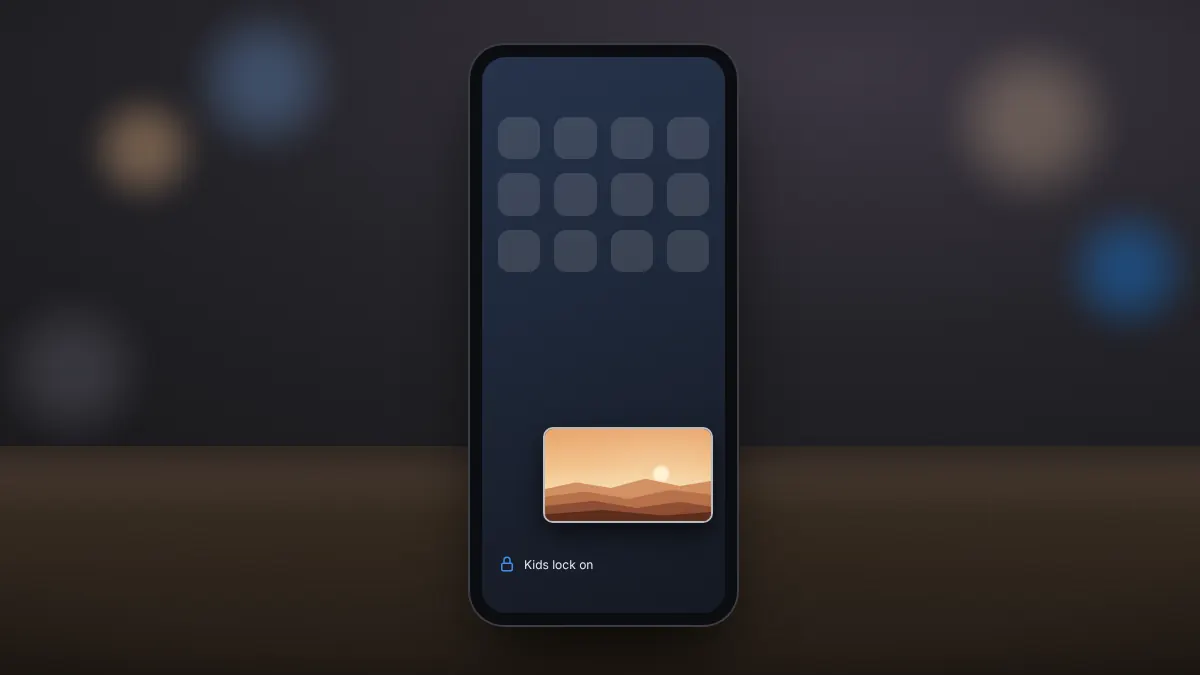
The lock button stops accidental touches from pausing or seeking, which helps when the phone is in a pocket or on a bumpy journey. The kids lock goes further and blocks the controls until you unlock it.
Customising gestures
In the app settings, under the player or gesture options, you can turn individual gestures on or off. If you often change volume by accident, disable that gesture and use the phone's buttons instead.