 MX Player Pro
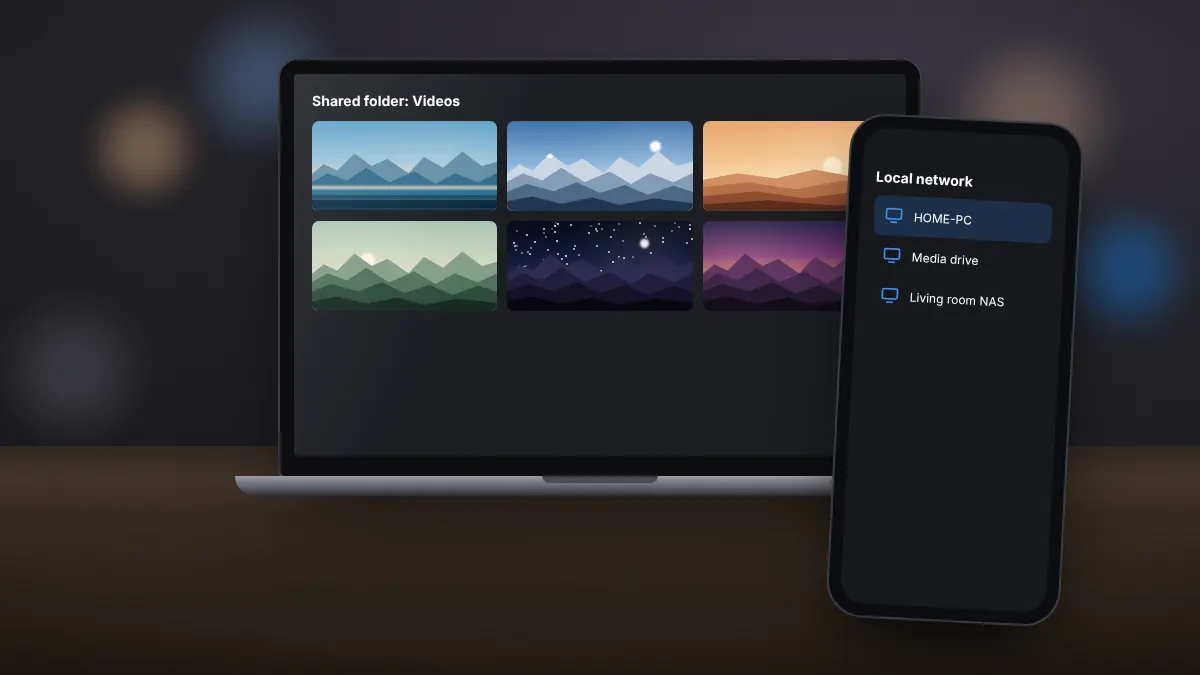
Storage on a phone fills up quickly. MX Player Pro can play videos stored on a computer or network drive over your home Wi-Fi, so you do not need to copy large files across first.
What you need
- A computer or network drive with a shared folder.
- The phone and the computer on the same Wi-Fi network.
- The username and password for the shared folder, if one is set.
Share a folder on Windows
- Right-click the folder that holds your videos and open Properties.
- Open the Sharing tab and choose Share.
- Add your user account with read access and confirm.
Connect from MX Player Pro
- Open the app menu and choose the local network option.
- Your computer should appear in the list. If it does not, add it manually by its IP address.
- Sign in with your Windows username and password, open the shared folder and choose a video.
Playing a stream link
The network stream option accepts a direct video address. Paste the link to a file you have permission to access, such as a video on your own media server.
Getting smooth playback
- Use the 5 GHz Wi-Fi band when available.
- Stay close to the router for high-bitrate files.
- Choose HW+ decoding to reduce the work on the phone.
Only share folders on private home networks. Turn off sharing before connecting the computer to public Wi-Fi.
Summary
Share a folder once, connect from the app, and your whole video library is available on the phone without using any of its storage.
Get the genuine appMX Player Pro is sold through Google Play.
Download MX Player Pro