 MX Player Pro
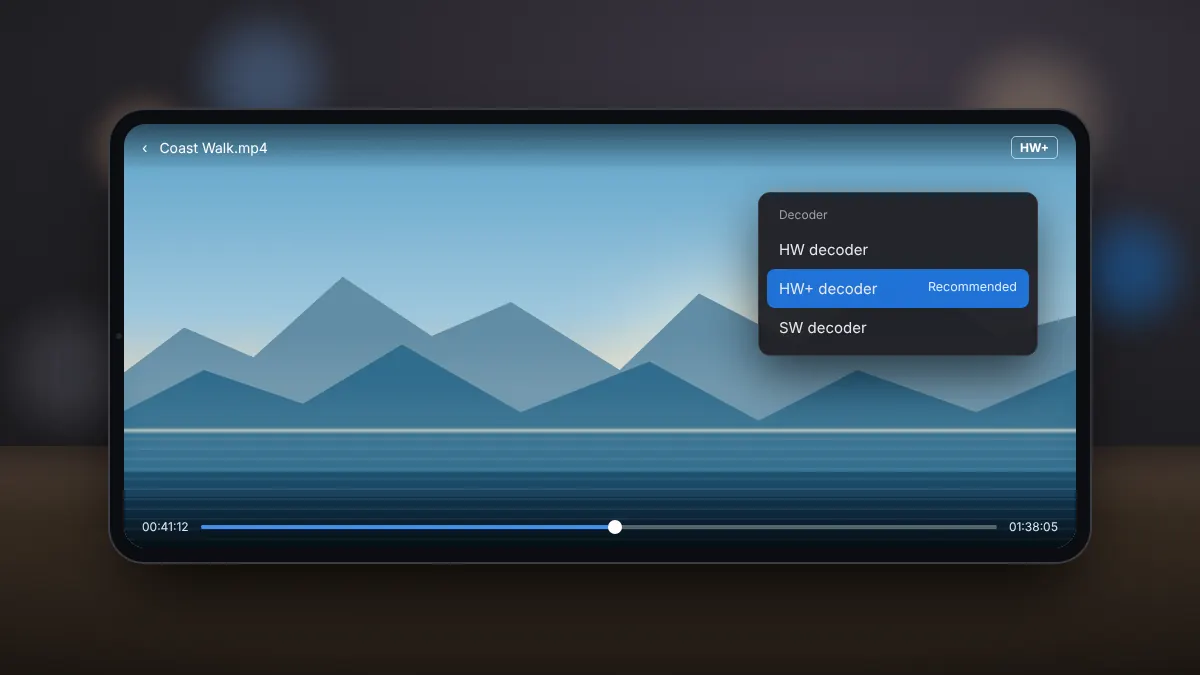
One of the reasons MX Player is popular is its choice of decoders. When a video stutters, shows a green screen or plays without sound, switching decoder is often the fastest fix. Here is what each option means.
The three decoder modes
| Mode | What it uses | Best for |
|---|---|---|
| HW | The phone's built-in hardware decoder through Android's standard media system | Maximum battery life on common formats |
| HW+ | MX Player's own access to the hardware decoder | Smooth playback of high-resolution video, and the default for many files |
| SW | Software decoding on the phone's processor | Unusual codecs and files the hardware cannot handle |
How to switch decoder while watching
- Tap the screen to show the controls.
- Tap the decoder label, usually shown as HW, HW+ or SW near the top of the screen.
- Choose another mode. Playback continues from the same point.
Which one should you use?
Start with HW+. It offers the best balance of smoothness and battery use on most phones. If the picture looks wrong or the app reports a problem, try HW, then SW.
Fixing common problems
- Green or distorted picture: switch from HW+ to HW or SW.
- Choppy 4K video in SW mode: switch to HW+, as software decoding struggles with very high resolutions.
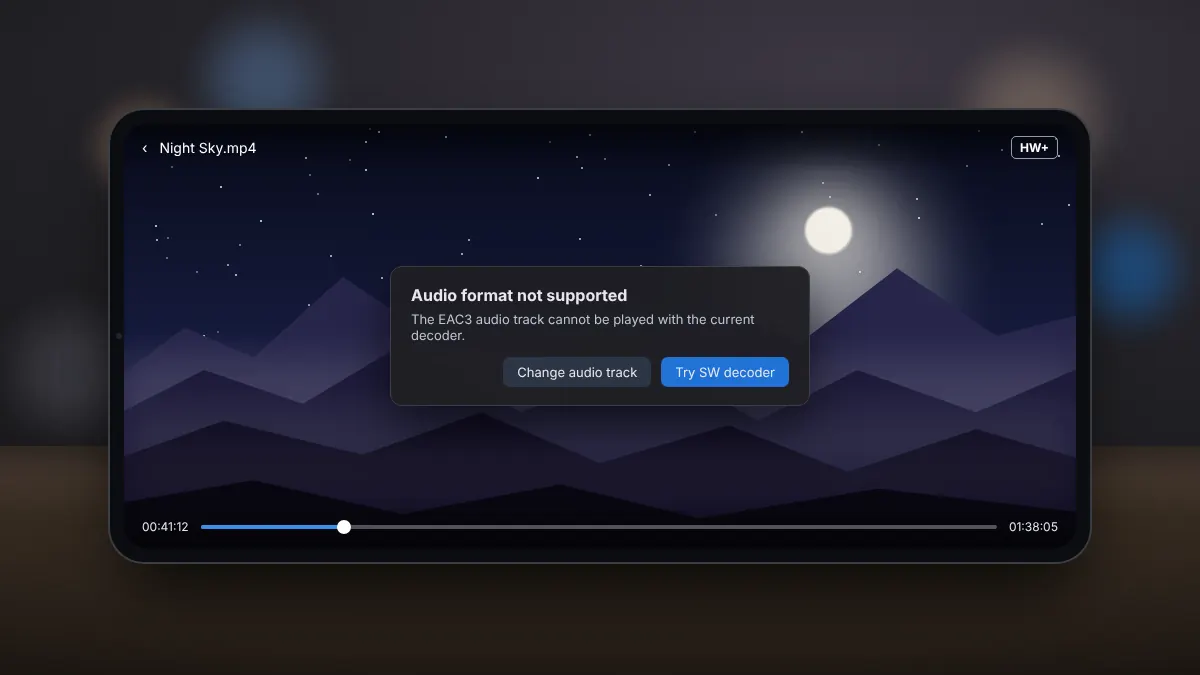
- Video plays but sound is missing: the audio codec may not be supported by the hardware decoder. Try SW, or see our guide to audio format errors.
- Phone gets hot: software decoding works the processor hard. Use HW or HW+ for long films.
You can set a default decoder for local files and for streams in the app settings under Decoder. Leave HW+ as the default and switch only for files that misbehave.
Multi-core decoding
When software decoding is needed, MX Player spreads the work across several processor cores. On modern phones this keeps even demanding files watchable, although battery use is higher than with hardware decoding.
Get the genuine appMX Player Pro is sold through Google Play.
Download MX Player Pro