 MX Player Pro
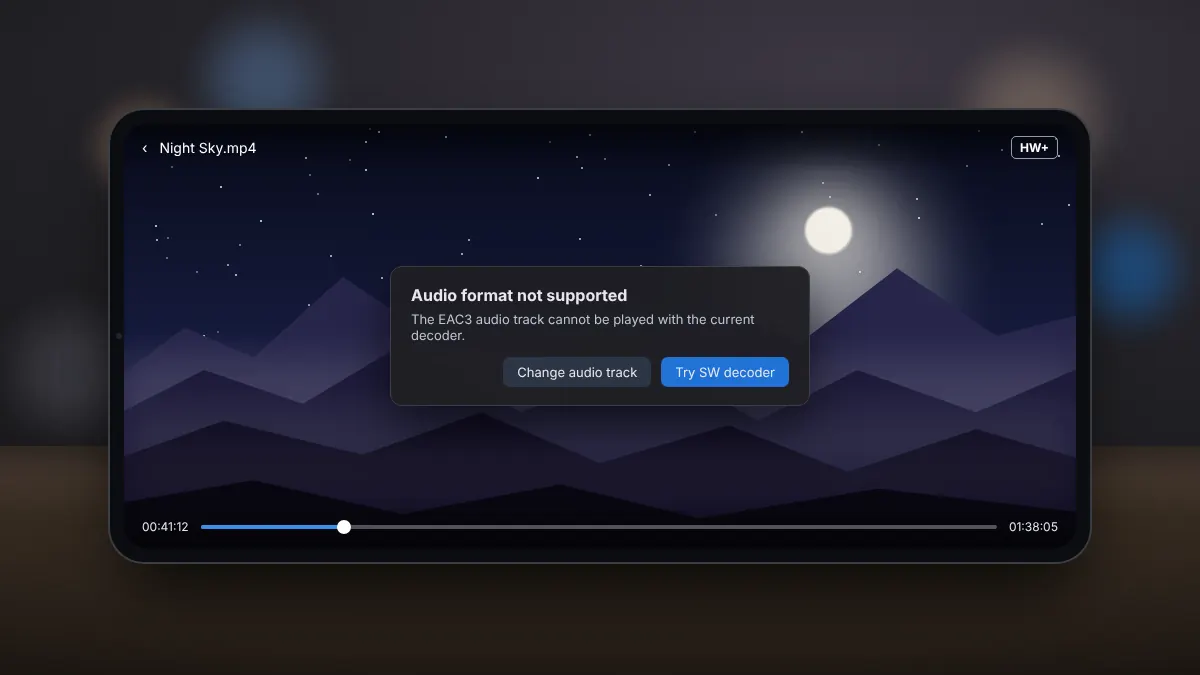
A video that plays perfectly but has no sound, with a message saying the audio format is not supported, is one of the most common issues in Android video players. The cause is almost always the audio codec, not the video.
Why it happens
Many films use surround sound formats such as AC3, EAC3 (Dolby Digital Plus) or DTS. These formats are licensed, and player apps on Android cannot always include decoders for them. If neither the app nor your phone's hardware can decode the track, the picture plays while the sound stays silent.
Fix 1: Switch decoder
Tap the decoder label and try HW, HW+ and SW in turn. Some phones include hardware support for these formats, so one mode may play the sound even when another cannot.
Fix 2: Choose another audio track
Many files include a second audio track, often in stereo AAC. Open the audio menu during playback and pick a different track.
Fix 3: Use a custom codec, carefully
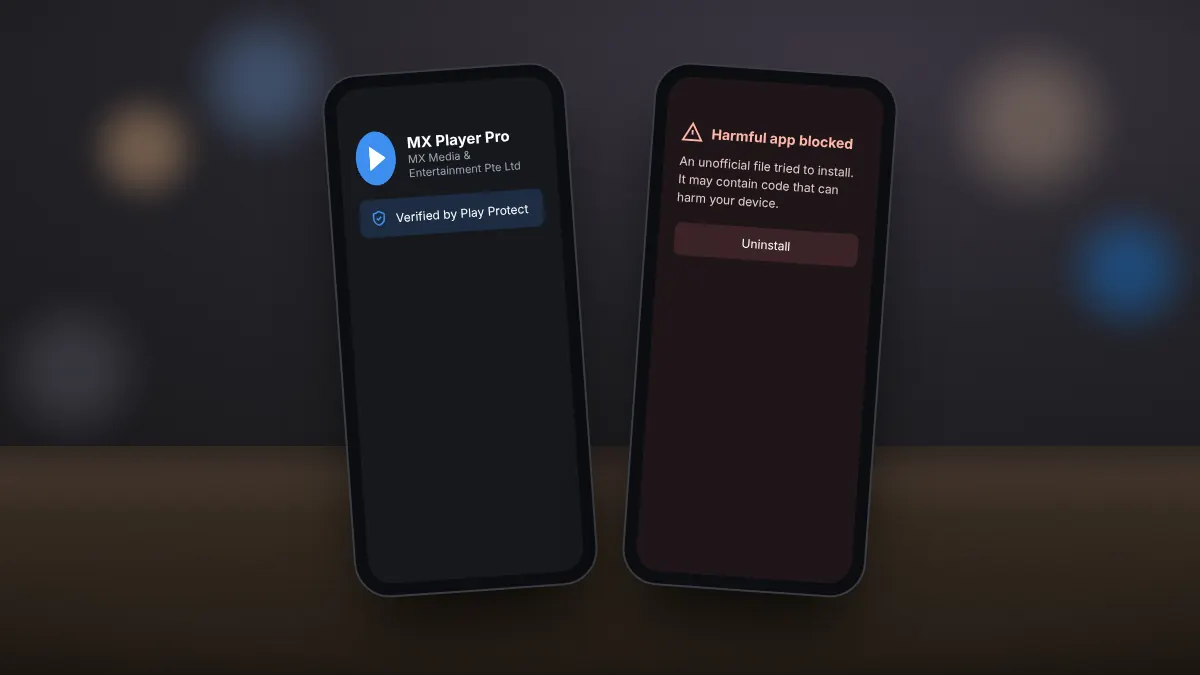
MX Player can load an additional codec file through its decoder settings. If you choose this route, use a codec that matches your app version and your phone's processor type, and only download it from a source you trust. Files from unknown sites can contain malware.
Fix 4: Convert the audio on a computer
A free tool such as HandBrake or FFmpeg can convert the audio track to AAC while copying the video unchanged. The result plays with sound on every phone.
Quick checklist
- Check the phone is not muted and the volume is up.
- Try the other decoder modes.
- Pick a different audio track.
- Convert the audio track to AAC if nothing else works.